An xTool map maker that writes .xs files
If you run an xTool, you want an xTool map maker that hands you files your software opens without a fight. MappSmith writes native xTool .xs files for xTool Creative Space, one per physical layer, with cut, score and engrave already separated. Set processing per layer, frame, and run.
7 days free, then $12 a month. Cancel anytime. Or 10 maps for $10.
- Native file
- .xs per layer
- Opens in
- xTool Creative Space
- Also
- Layered SVG, DXF, PDF
- Ops
- Cut, score, engrave by color
- Batching
- Sheets: 12x12 to 24x24 in, A4, A3, custom
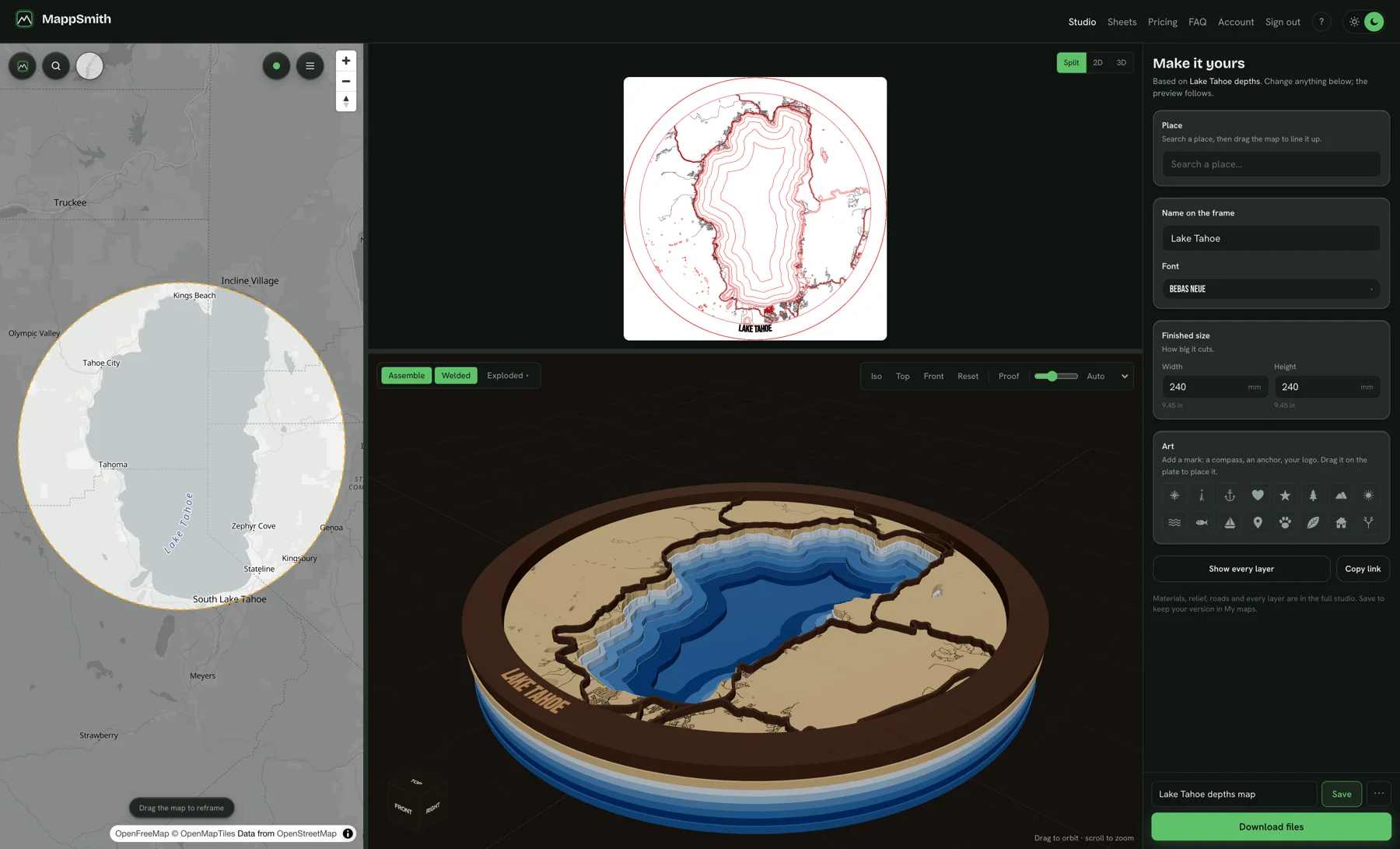
What the xTool map maker download contains
In Production files, tick xTool. Your zip gets an .xs file for each layer next to the SVG, named with that layer's material. Open the .xs in xTool Creative Space. You can also import the SVG if you prefer. MappSmith writes engrave as black (#000000), score as blue (#0000FF) and cut as red (#FF0000) in every cut file.
Each file is one sheet of stock. A 3-layer map is three files: blue acrylic, land, streets. Cut them one at a time, swapping material between jobs.
Set the processing for each layer
In xTool Creative Space, each object gets a processing type: cut, score or engrave. MappSmith separates them by color so you can select by layer and set each one. Power, speed and passes are yours to set. MappSmith doesn't know your machine or stock.
| Map part | Processing | Note |
|---|---|---|
| Outline, water, cut streets | Cut | Through the sheet |
| Glue guides, scored roads | Score | Light pass, never through |
| Local streets, names, depth lines | Engrave | Filled shapes: run as a fill |
xTool's own map guide puts it simply: cut the water, engrave the roads. One maker who builds maps on an xTool P2 adds: score roads instead of engraving when you can. It's faster and they stand out more.
Bed size and batches
Check your bed before you sell a size. That same P2 maker said a city map "just barely" fit her machine, and anything larger needs a conveyor or tiling. MappSmith's map tiles split one map across separate boards that hang side by side, 20 mm apart, each with its own frame band, and each tile downloads as its own files.
For small things, use Sheets. Lay out ornaments or coasters on one sheet of stock (12x12, 12x20, 12x24, 18x24, 24x24 inches, A4, A3 or custom), set the edge margin and spacing, and get one file per sheet. xTool's hometown ornament project uses 3 mm basswood plywood and recommends a honeycomb bed and air assist.
First-run checklist for xTool
- Open the .xs and confirm the size matches your order. Files are in millimetres at finished size.
- Set processing per color: cut, score, engrave.
- Order the job so engrave and score run before cut.
- Frame the job on the stock.
- Cut a test on cardboard, then on scrap of the real stock.
- Cut each layer from its own material, dry-stack, then glue.
Streets come from OpenStreetMap, so include "© OpenStreetMap contributors" on the listing and packaging (details).
Print and cut, and stacked pieces on xTool
If you UV print a map and then cut it out, turn on registration marks and choose "Red + blue crosshairs," the two-point style for LightBurn Print & Cut or xTool. In the cut file the marks sit on a layer that never burns, so they are never cut. The print files come as PNG, TIFF with a white channel, and PDF with a CutContour line.
For lake and terrain reliefs, each sheet is its own .xs, numbered from the bottom. Leave Glue guides on: they're scores, so they mark where the next sheet sits without cutting through. Cut them all, lay them out in order, and dry-fit each one to the line below before you glue.
Common map problems on an xTool, and the fix
| Problem | Likely cause | Fix |
|---|---|---|
| Streets vanish or snap | Line width below your kerf | Raise that road group’s width, or engrave it instead of cutting |
| Street pieces fall out | Not joined to the frame band | MappSmith won’t export them. Add a road group or widen the band |
| Char on delicate pieces | Smoke on the face | Mask the land layer before engraving and cutting |
| Map bigger than the bed | Size too large | Use map tiles, each with its own band |
| A street or lake is missing | OpenStreetMap data gap | Check the place before cutting; fixes in OSM reach MappSmith over time |
Questions makers ask
Does MappSmith export xTool .xs files?
Yes. Tick xTool in Production files. Each layer comes as an .xs file next to its SVG.
Does it work with xTool Creative Space?
Yes. Open the .xs in xTool Creative Space, or import the SVG.
Does it set power and speed for my xTool?
No. Set processing values for your machine and material and test on scrap first.
My map is bigger than my bed. What now?
Use map tiles: one map split across boards that hang side by side, each cut on its own.
Can I cut a batch of map ornaments on my xTool?
Yes. Save the ornament, use "Make a set on one sheet", pick your stock size and spacing, and download one file for the sheet.
Keep going
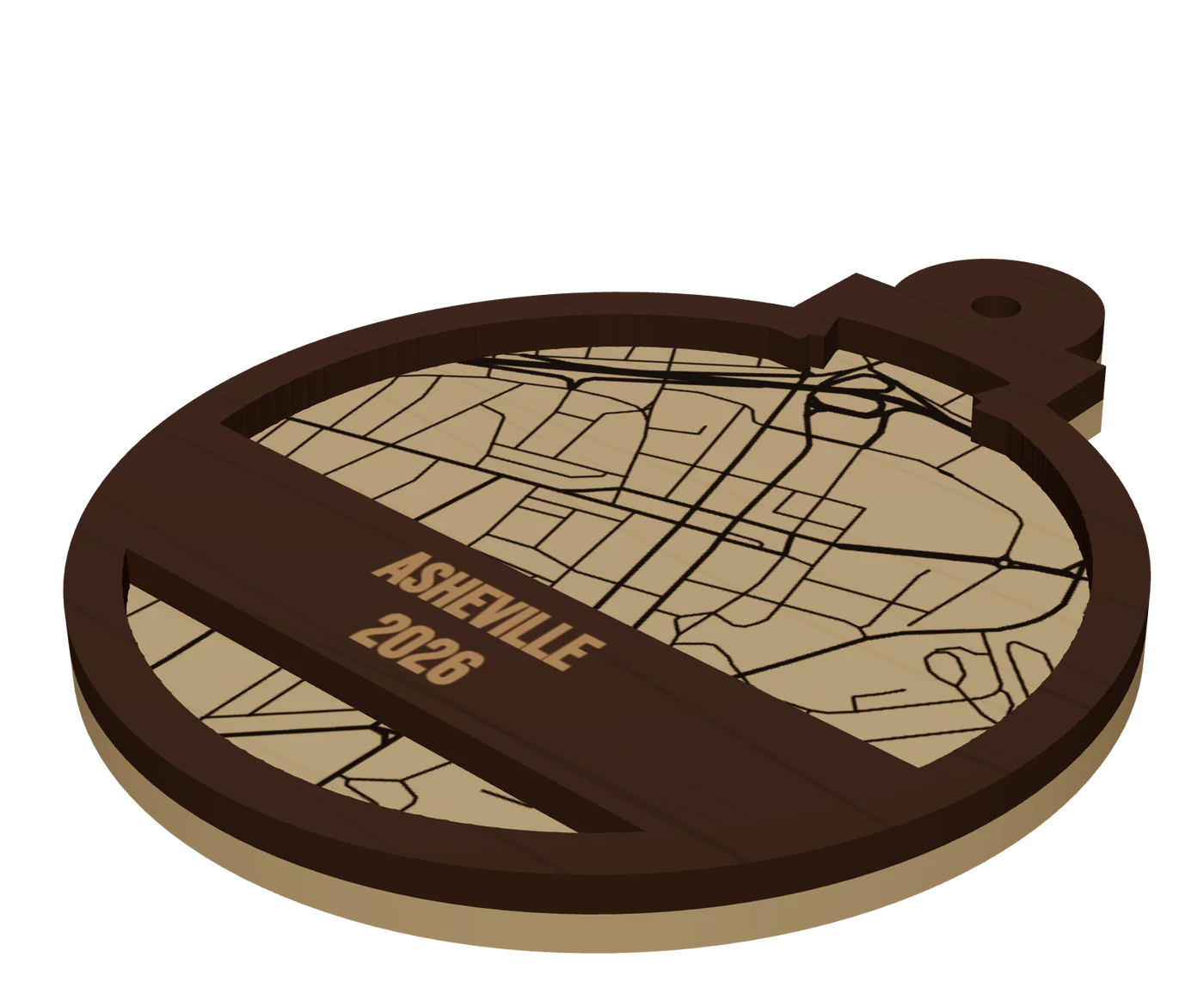 Pieces to makeMap ornamentsA 4 in layered hometown ornament with a name and a year. The map most customers buy first.
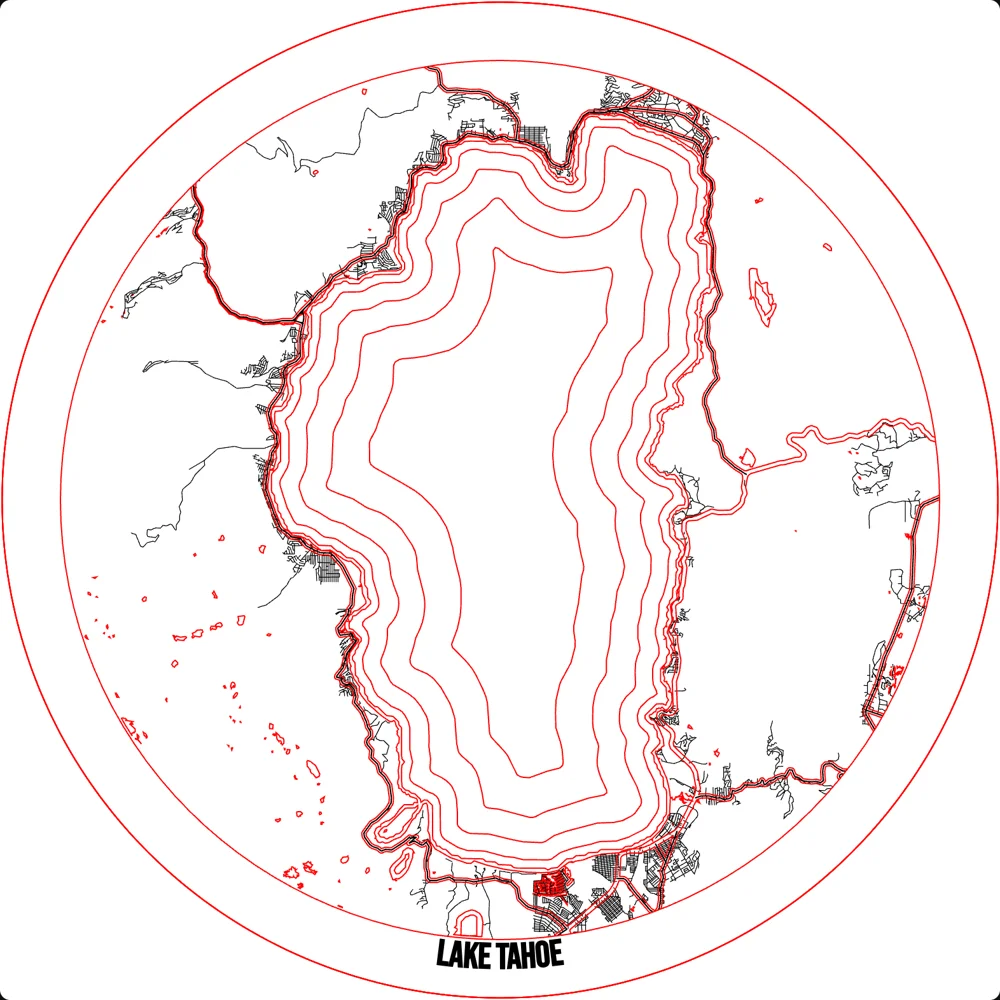 GuideCutting a Map File: Layers, Kerf, Cut Order and FixesCutting a map file is where good designs go wrong. Roads snap, pieces fall through the honeycomb, layers do not line up. This guide covers what is inside a layered map SVG, how line width relates to kerf, when to cut, score or engrave, and how to fix the common failures.
 Selling mapsMap making for laser engraversHow makers build map files by hand today, where it hurts, and the shorter route.
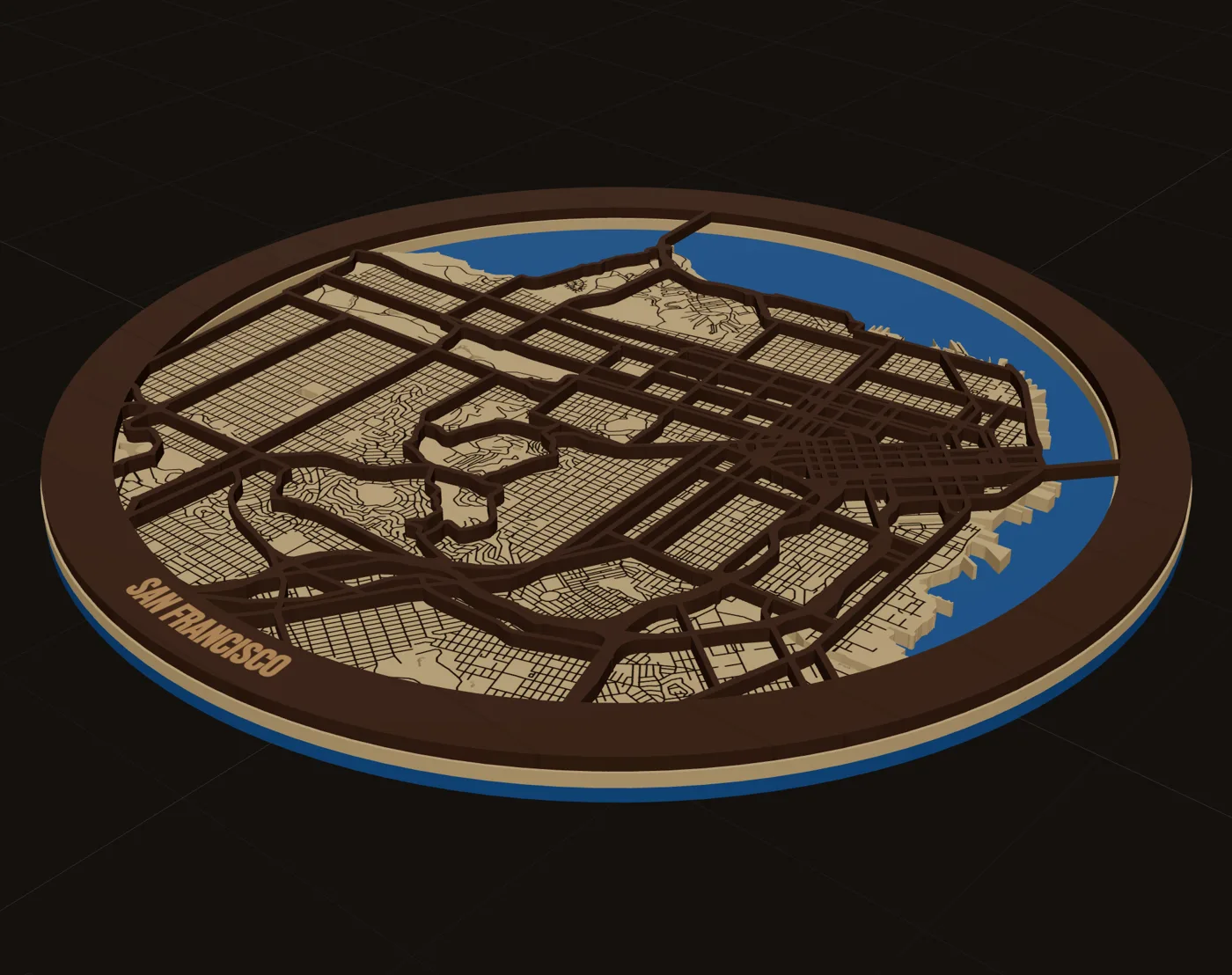 Your machineMaps for GlowforgeLayered SVGs that load in the Glowforge app as separate steps, sized and tiled for the bed.
Make your first maps for xtool file tonight.
Search the place, pick the piece, check it in 3D, download files that open in LightBurn, xTool Creative Space and Glowforge.
7 days free, then $12 a month. Cancel anytime. Or 10 maps for $10.
— more from MappSmith
Everything else this app gives you.
Free tools, libraries and guides — most of it works before you pay for anything.